
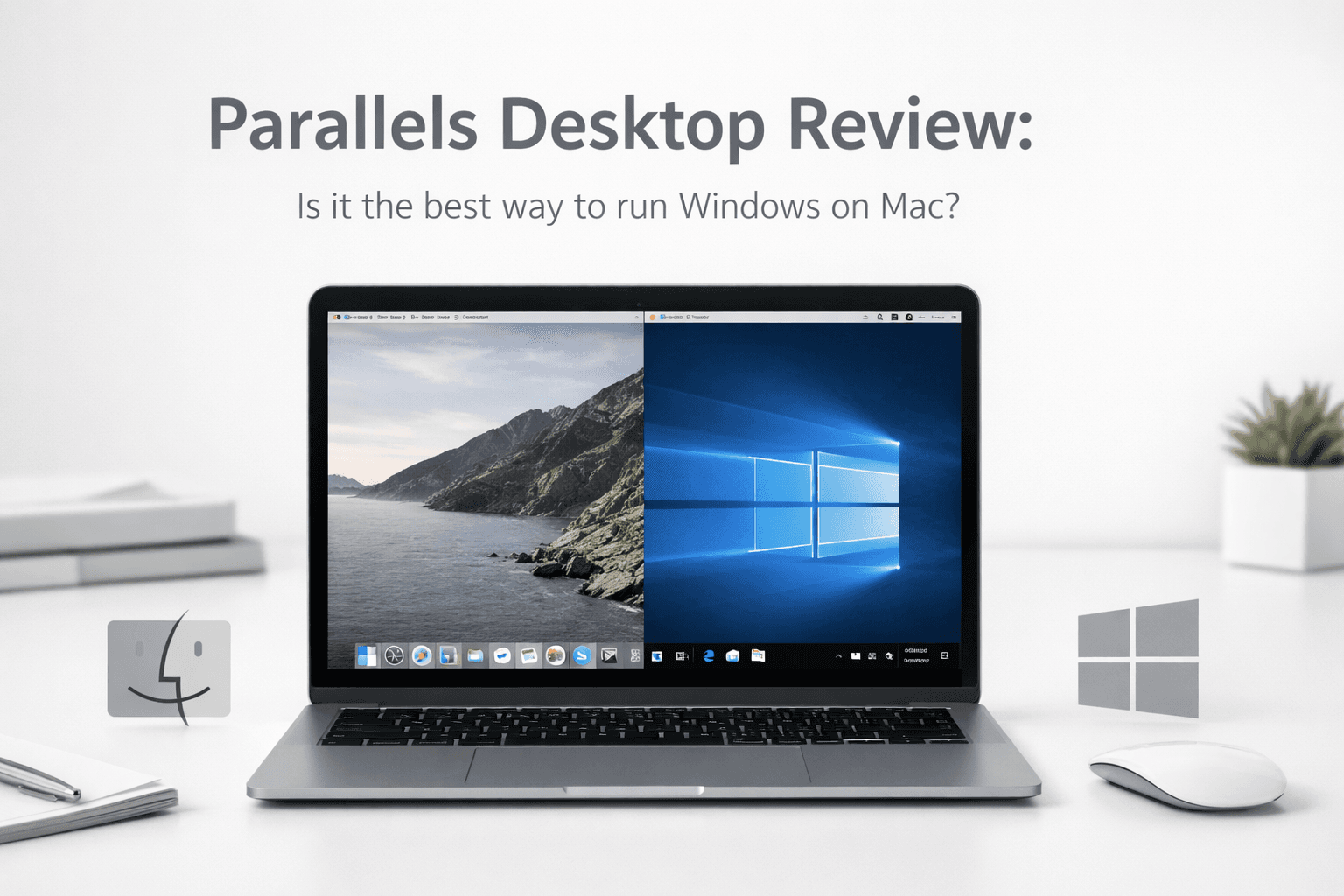
Parallels Desktop Review
Jan 15 2026
If you’re a Mac user who occasionally or regularly needs access to Windows applications, buying a separate PC isn’t your only option. Parallels Desktop has become one of the most trusted virtualisation solutions for running Windows, Linux, and other operating systems directly on macOS, without rebooting.
In this detailed review, we’ll break down its performance, features, pricing, usability, advantages, and limitations to help you decide if it’s the right investment.
What Is Parallels Desktop?
Parallels Desktop is virtualisation software built specifically for macOS. Instead of dual-booting into Windows, it creates a virtual machine (VM) that runs Windows alongside macOS. You can switch between systems instantly without restarting your Mac.
It supports:
Intel-based Macs
Apple Silicon Macs (M1, M2, M3)
Windows 11 ARM
Multiple Linux distributions
This flexibility makes it one of the most practical solutions for users who rely on cross-platform tools.
Installation and Setup
One of Parallels Desktop’s biggest strengths is its ease of use.
After installation:
Windows 11 can be downloaded directly within the app
Setup is largely automated
Most installations take under 20 minutes
There’s no need for advanced configuration. Drivers and optimisation settings are handled automatically, making it beginner-friendly.
Key Features
1. Seamless macOS Integration
With Coherence Mode, Windows apps behave like native Mac applications. You can:
Launch Windows apps from the Dock
Use Mac gestures within Windows programs
Copy and paste across operating systems
Share folders effortlessly
This eliminates the “two separate systems” feeling and creates a smooth workflow.
2. Optimised for Apple Silicon
Parallels is fully optimised for Apple Silicon chips (M1, M2, M3). Windows 11 ARM runs efficiently and feels responsive for most productivity tasks.
For office work, web apps, and business tools, performance is impressively smooth.
3. Custom Resource Allocation
Advanced users can allocate:
CPU cores
RAM
Graphics memory
Disk storage
This allows developers, designers, and power users to tailor performance based on workload demands.
4. Device and File Sharing
Parallels makes it easy to connect:
USB devices
External drives
Printers
Network devices
You can choose whether connected hardware links to macOS or Windows.
5. Snapshot & Backup Features
The snapshot tool lets you save your virtual machine’s current state. If something goes wrong—like a failed software installation, you can revert instantly.
This is especially valuable for developers and testers.
Real-World Performance
Productivity Tasks
For Microsoft Office, accounting software, browsers, and corporate tools, performance is excellent. Windows apps launch quickly, and multitasking between macOS and Windows feels natural.
Development Work
Developers benefit from strong compatibility with:
Visual Studio
Database tools
Framework testing
Docker (Pro Edition)
For smooth development workflows, 16GB RAM or more is recommended.
Creative Software
Basic design and editing software runs well. However, heavy 3D rendering or complex visual tasks may push system limits, especially on lower-spec Macs.
Gaming Performance
Parallels supports DirectX 11 and OpenGL. Casual and moderately demanding games run decently, but it’s not a replacement for a dedicated gaming PC.
High-end AAA games may struggle, particularly on 8GB systems.
Pricing and Editions
Parallels Desktop offers three editions:
Standard Edition
Ideal for students and home users. Covers essential virtualisation needs.
Pro Edition
Designed for developers and power users. Allows higher resource allocation and advanced networking features.
Business Edition
Built for enterprise environments with centralised management and enhanced security controls.
The software uses a subscription model, which ensures regular updates and compatibility improvements, but may not appeal to users who prefer one-time purchases.
System Requirements
For optimal performance:
16GB RAM recommended
Adequate storage space
Apple Silicon or a modern Intel processor
While 8GB systems can run it, multitasking performance may be limited.
Pros and Cons
Pros
Easy installation and setup
Excellent macOS integration
Fully optimised for Apple Silicon
Strong productivity performance
No reboot required
Reliable customer support
Cons
Subscription-based pricing
Windows license purchased separately
Can consume significant system resources
Limited high-end gaming support
Parallels Desktop vs Boot Camp
Boot Camp required rebooting into Windows and is not supported on Apple Silicon Macs.
Parallels Desktop allows both systems to run simultaneously, making it far more convenient, especially for modern Mac users.
Security and Stability
Parallels isolates the virtual machine from macOS while allowing controlled file sharing. Frequent updates maintain compatibility with macOS and Windows updates.
Business Edition adds enhanced IT controls and enterprise-level security features.
Who Should Use Parallels Desktop?
It’s ideal for:
Students using Windows-only academic software
Professionals running corporate Windows apps
Developers testing cross-platform environments
Mac users are avoiding a second device purchase
It may not suit users seeking free virtualisation tools or serious gamers.
Final Verdict
Parallels Desktop remains one of the most polished virtualisation solutions for Mac. Its seamless integration, Apple Silicon optimisation, and reliable performance for productivity tasks make it a top-tier option.
While subscription pricing and resource demands may be drawbacks, the convenience and efficiency often outweigh the cost.
If you rely on Windows software but prefer macOS, Parallels Desktop is one of the most practical solutions available today.
Get the latest Parallel desktop for running Windows, Linux, and other operating systems directly on macOS, without rebooting.
FAQs
Can Parallels Desktop run Windows 11 on M1 or M2 Macs?
Yes, it supports Windows 11 ARM and is optimised for Apple Silicon chips.
Do I need to buy a Windows license separately?
Yes, Parallels does not include a Windows license.
Is 8GB RAM enough for Parallels?
It works, but 16GB RAM is recommended for smoother multitasking.
Can I play games using Parallels Desktop?
Casual and mid-range games run fine, but it’s not designed for high-end gaming.
Is Parallels better than Boot Camp?
For Apple Silicon Macs, yes, Boot Camp is not supported, and Parallels allows simultaneous macOS and Windows use.