
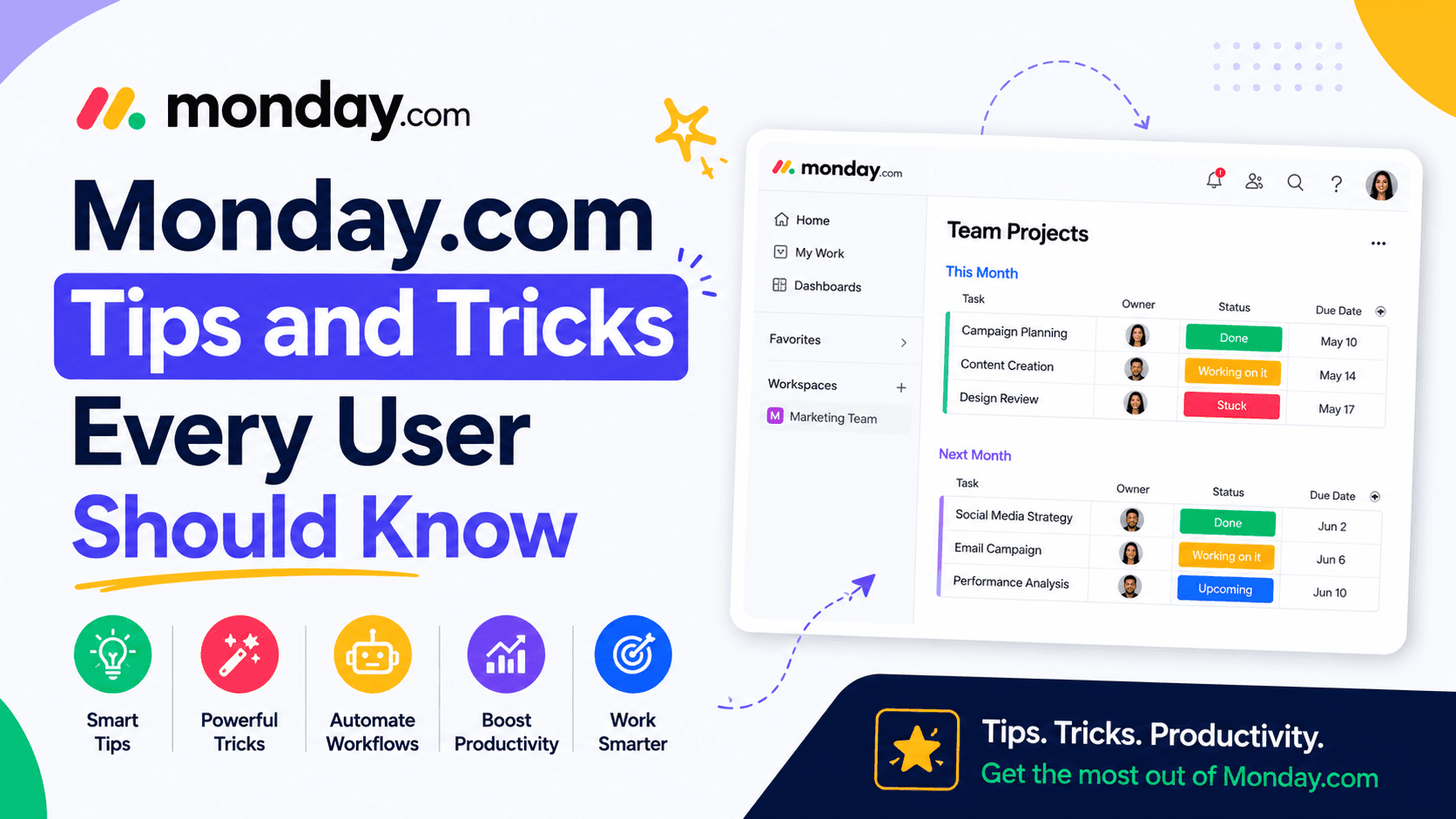
Monday com Tips and Tricks
Mar 11 2026
Whether you're managing a small team, running multiple client projects, or simply trying to stay organized, Monday.com can make your work significantly easier, but only if you're using it to its full potential.
Many new users stick to creating basic task boards and assigning deadlines, unaware that Monday.com offers powerful features like automations, dashboards, custom views, formulas, integrations, and templates that can save hours every week.
The good news? You don't need to be a project management expert to take advantage of these features.
In this guide, we'll share some of the most useful Monday.com tips and tricks that can help beginners and experienced users alike work faster, collaborate better, and get more out of the platform.
Why Learning Monday.com Tips Matters
Monday.com is highly customizable, which is one of its biggest strengths, but it also means many useful features can go unnoticed.
By learning a few simple tricks, you can:
Save time on repetitive tasks
Reduce manual updates
Improve team collaboration
Keep projects organized
Avoid missed deadlines
Create better reports
Increase overall productivity
Small changes in how you use the platform can make a noticeable difference in your daily workflow.
1. Start with Templates Instead of Building from Scratch
One of the easiest ways to get started is by using Monday.com's extensive template library.
Templates are available for almost every business need, including:
Project management
Marketing campaigns
Content calendars
CRM
HR onboarding
Recruitment
Event planning
Sales pipelines
Product launches
Bug tracking
Instead of creating every column and workflow manually, choose a template and customize it to suit your team.
Pro Tip: Even if a template isn't a perfect match, it's often quicker to modify an existing one than to build a new board from scratch.
2. Use Status Colors Consistently
Status columns are more than just colorful labels—they're a quick way to communicate progress.
For example:
Color | Meaning |
Green | Completed |
Yellow | In Progress |
Red | Stuck or Delayed |
Blue | Planned |
Gray | Not Started |
Keeping these colors consistent across all boards makes it easier for everyone to understand project status at a glance.
Unlock smarter workflows with Monday.com and start saving time today.
3. Automate Repetitive Work
Automation is one of Monday.com's most valuable features.
Instead of manually updating boards every day, create automations for common tasks.
Examples include:
Notify teammates when a task is assigned.
Move completed items to another group.
Send reminders before deadlines.
Change statuses automatically.
Create recurring tasks.
Assign work when a status changes.
Even a few simple automations can save hours of repetitive work each month.
4. Switch Between Different Board Views
Many users stay in the default table view, but Monday.com offers several other ways to visualize your work.
Some of the most useful views include:
Calendar View
Perfect for editorial calendars, marketing campaigns, and event planning.
Kanban View
Ideal for Agile workflows and tracking task progress.
Timeline View
Useful for planning projects over weeks or months.
Gantt View
Helps visualize project dependencies and deadlines.
Workload View
Shows how work is distributed across your team, helping prevent burnout or uneven workloads.
Switching views doesn't change your data, it simply displays it in a format better suited to the task.
5. Keep Boards Clean and Organized
As projects grow, boards can quickly become cluttered.
To keep everything manageable:
Archive completed projects.
Group similar tasks together.
Remove unused columns.
Rename columns clearly.
Use folders for related boards.
Avoid adding unnecessary fields.
A clean workspace makes it easier for everyone to find what they need.
6. Make the Most of Dashboards
Dashboards provide a high-level overview of your projects.
Instead of opening multiple boards, you can see:
Project progress
Team workload
Deadlines
Budget tracking
Time spent
Overall performance
Managers especially benefit from dashboards because they offer real-time insights without needing to request updates from every team member.
7. Add Clear Task Descriptions
A task titled "Update Website" doesn't provide much context.
Instead, include:
Objectives
Required files
Deadlines
Priority level
Checklist
Relevant links
Assigned team members
The more detailed the task, the fewer follow-up questions your team will have.
8. Use Item Updates Instead of Long Email Chains
Rather than discussing work through scattered emails or chat messages, keep conversations attached to the relevant task.
Benefits include:
Better context
Easier collaboration
Complete activity history
Faster onboarding for new team members
Anyone opening the task can immediately understand previous discussions.
9. Take Advantage of Keyboard Shortcuts
Learning a few keyboard shortcuts can make navigation much faster.
Depending on your operating system, you can quickly:
Search boards
Create new items
Navigate between views
Open notifications
If you use Monday.com daily, these shortcuts can save valuable time.
10. Use Filters to Focus on What Matters
Large boards often contain hundreds of tasks.
Instead of scrolling endlessly, apply filters such as:
Assigned to me
Due this week
High priority
Completed tasks
Marketing projects
Overdue items
Filtering helps you focus only on the tasks that require attention.
11. Connect Monday.com with Your Favorite Apps
Monday.com becomes even more powerful when integrated with the tools your team already uses.
Popular integrations include:
Slack
Microsoft Teams
Google Drive
Gmail
Outlook
Zoom
Dropbox
HubSpot
Salesforce
Zapier
These integrations reduce duplicate work and keep information flowing between platforms automatically.
Explore Monday.com's templates and automate your daily tasks with ease.
12. Create Recurring Tasks
Some tasks repeat every week or month.
Instead of recreating them manually, automate recurring items for:
Weekly meetings
Monthly reports
Invoice reminders
Social media posts
Employee check-ins
Content publishing
Recurring tasks ensure nothing gets forgotten.
13. Track Time on Important Projects
If your team bills clients by the hour or wants to measure productivity, use Monday.com's time tracking features.
This helps you:
Monitor project costs
Improve future estimates
Identify bottlenecks
Understand where your team's time is being spent.
14. Build Custom Dashboards for Different Teams
Not every department needs the same information.
Create separate dashboards for:
Marketing
Sales
HR
Product development
Leadership
Each dashboard can display only the metrics relevant to that team.
15. Explore Formula Columns
Formula columns work similarly to spreadsheet formulas.
They can automatically calculate:
Budget totals
Profit margins
Project completion percentages
Remaining days
Performance metrics
This reduces manual calculations and improves reporting accuracy.
16. Use Tags to Organize Projects
Tags make it easy to categorize work across multiple boards.
Examples include:
Urgent
Client Work
Internal
High Priority
Q3 Campaign
Website
Mobile App
Tags make searching and filtering much easier.
Boost your team's productivity using these expert Monday.com tips
17. Archive Instead of Deleting
Finished projects often contain valuable information.
Rather than deleting them, archive completed boards so they remain accessible for future reference while keeping your workspace tidy.
18. Regularly Review Automations
As your business grows, workflows change.
Review your automations every few months to:
Remove outdated rules
Improve efficiency
Reduce unnecessary notifications
Match current business processes
A well-maintained automation system keeps your workspace running smoothly.
Common Mistakes to Avoid
Even experienced users can fall into habits that reduce efficiency.
Avoid these common mistakes:
Creating too many boards for related work
Overusing automations without reviewing them
Leaving completed tasks on active boards
Using unclear task names
Adding unnecessary columns
Ignoring dashboards and reports
Not training new team members on board structure
Forgetting to update task statuses
Keeping your workspace simple and consistent is often more effective than adding extra complexity.
Bonus Productivity Tips
Here are a few additional ways to get even more from Monday.com:
Review your dashboard at the start of each day.
Set realistic due dates to avoid bottlenecks.
Use dependencies for tasks that rely on one another.
Create board templates for recurring projects.
Encourage team members to update statuses regularly.
Combine automations with integrations to reduce manual work.
Use notifications wisely to stay informed without overwhelming your inbox.
Final Thoughts
Monday.com is much more than a digital to-do list. With the right setup, it becomes a central hub for managing projects, collaborating with teammates, and automating repetitive work.
The best part is that you don't need to master every feature on day one. Start with simple improvements like using templates, organizing your boards, and setting up a few automations. As you become more comfortable with the platform, you can explore dashboards, formulas, integrations, and advanced workflows.
By applying these tips and tricks, you'll not only save time but also create a more organized, transparent, and productive way of working.
Try these Monday.com tricks and transform the way your team works.
Frequently Asked Questions
What is the best way to start using Monday.com?
Start with one of Monday.com's built-in templates. It gives you a ready-made workflow that you can customize instead of building a board from scratch.
Which Monday.com feature saves the most time?
Automation is one of the biggest time-savers. It can automatically assign tasks, update statuses, send reminders, and move items based on triggers.
Can I use Monday.com for personal productivity?
Yes. Individuals can use it to manage personal projects, study schedules, travel plans, budgets, or daily to-do lists.
How do I keep my Monday.com workspace organized?
Archive completed boards, use consistent status labels, group related tasks, remove unused columns, and review your automations regularly.
Are Monday.com integrations worth using?
Absolutely. Integrations with tools like Slack, Google Drive, Microsoft Teams, and Zoom help streamline communication and reduce manual work.