
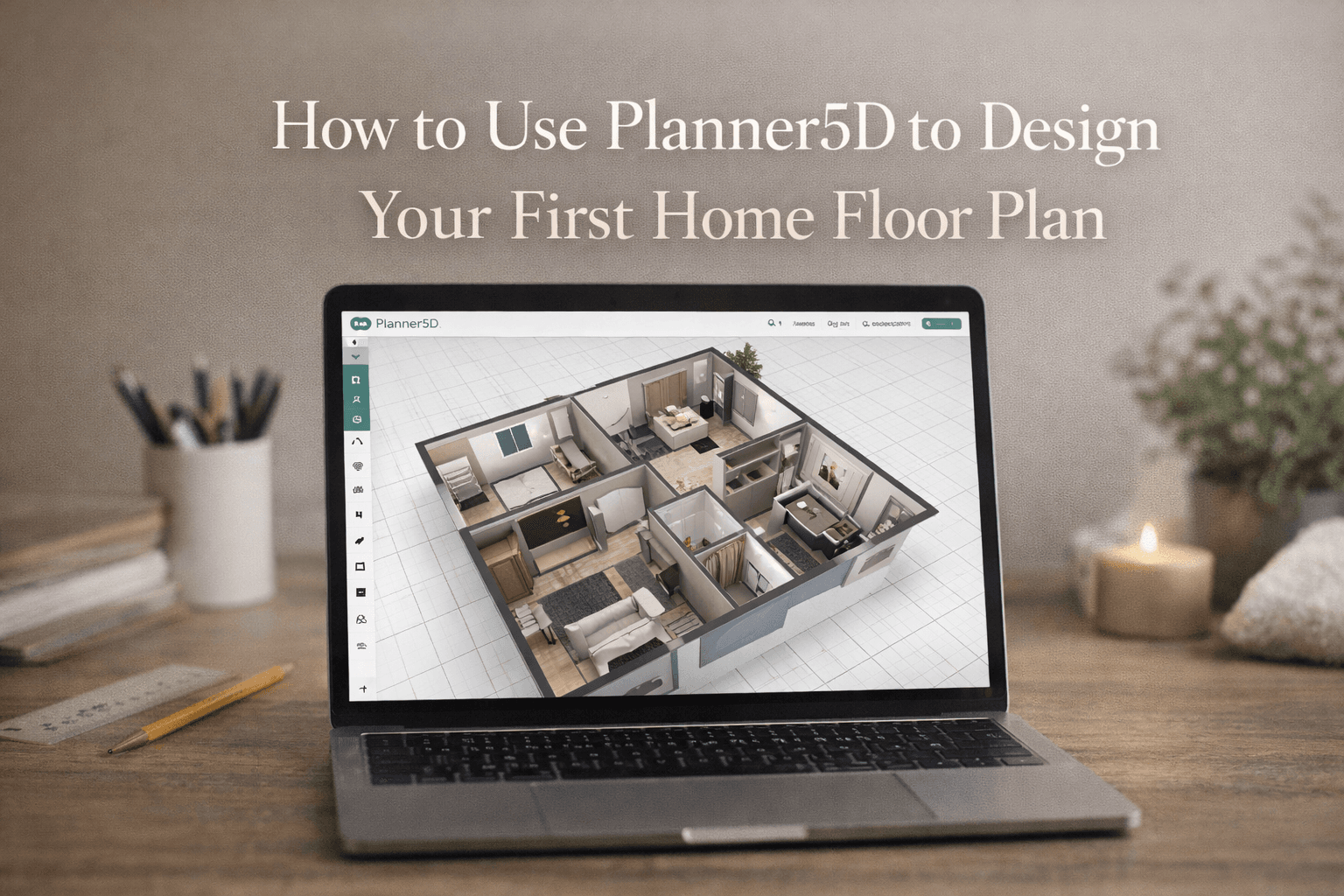
How to Use Planner5D to Design Your First Home
Jan 24 2026
Designing your first home can feel overwhelming, especially if you have no architectural or interior design background. From room layouts to furniture placement, every decision feels important. That’s where Planner5D comes in.
Planner5D is one of the most beginner-friendly home design tools available today. Whether you’re planning a small apartment, a family home, or just experimenting with ideas, it allows you to create detailed 2D and 3D floor plans without technical expertise.
In this complete beginner’s guide, you’ll learn how to use Planner5D to design your first home floor plan step by step, along with expert tips, common mistakes to avoid, and answers to frequently asked questions.
What Is Planner5D?
Planner5D is an intuitive home design and floor planning software available on the web, desktop, and mobile devices. It allows users to:
Create accurate 2D floor plans
Convert layouts into realistic 3D designs
Add furniture, decor, lighting, and textures
Visualise homes before construction or renovation
Planner5D is widely used by:
Homeowners and renters
Beginners with no design experience
Interior designers and real estate professionals
Students and DIY planners
Also Read: Ultimate Guide to Home Plans and Designing with Planner5D
Why Use Planner5D for Your First Home Design?
If you’re new to home planning, Planner5D offers several advantages:
Beginner-Friendly Interface: No learning curve. The drag-and-drop system makes designing intuitive.
No Technical Knowledge Required: You don’t need CAD skills or architectural training.
Realistic 3D Visualisation: Instantly switch from 2D to 3D to see how your home will actually look.
Large Furniture and Decor Library: Choose from thousands of furniture items, fixtures, and materials.
Free Version Available: Perfect for experimenting before upgrading.
Getting Started with Planner5D
Create a Planner5D Account
To begin:
Visit the Planner5D website or download the app
Sign up using email, Google, or Apple
Log in to access your dashboard
Once logged in, you’ll see options to:
Create a new project
Use templates
Explore community designs
Start a New Floor Plan Project
Click “Create New Project” to begin designing your home.
You’ll be asked to choose:
2D Mode (recommended for beginners)
3D Mode (for visualisation later)
Tip: Always start in 2D mode for accuracy, then switch to 3D once the layout is ready.
Set Your Home Dimensions
Before adding rooms, define the basic structure.
Choose Your Layout Type
You can:
Draw walls manually
Use pre-built room templates
Import inspiration from sample designs
Define Measurements
Planner5D allows you to:
Set wall lengths
Adjust wall thickness
Define ceiling height
Accurate dimensions help ensure your design reflects real-world proportions.
Draw Walls and Create Rooms
This is the foundation of your floor plan.
How to Draw Walls
Select the Wall Tool
Click and drag to draw walls
Connect walls to form rooms
Planner5D automatically snaps walls together, making alignment easy.
Create Individual Rooms
Label rooms such as:
Living room
Bedroom
Kitchen
Bathroom
This helps with organisation and furniture placement later.
Add Doors and Windows
Doors and windows affect:
Natural lighting
Ventilation
Furniture placement
Adding Doors
Choose from sliding, hinged, or double doors
Adjust width and swing direction
Adding Windows
Select window styles
Resize and reposition
Experiment with placement for natural light
Beginner tip: Place windows before adding furniture to avoid layout conflicts.
Switch to 3D View to Visualise Your Home
Once your walls, doors, and windows are in place, switch to 3D Mode.
Benefits of 3D View
Walk through your home virtually
Understand spacing and flow
Identify layout mistakes early
Check out Planner5D and enjoy the 3D view that gives a realistic sense of scale, helping you refine your design before moving forward.
Furnish Your Home Room by Room
Now comes the fun part: furnishing your home.
Using the Furniture Catalogue:
Planner5D offers categories like:
Sofas, beds, tables
Kitchen cabinets and appliances
Bathroom fixtures
Lighting and decor
How to Add Furniture
Select an item
Drag it into the room
Resize and rotate as needed
Design tip: Start with large furniture first, then add smaller items.
Customise Materials, Colours, and Textures
Personalise your design by changing:
Wall colors and textures
Floor materials (wood, tile, marble)
Furniture finishes
Planner5D lets you preview changes instantly in 3D, making it easier to experiment without commitment.
Adjust Lighting for a Realistic Look
Lighting dramatically impacts how your home feels.
Add Lighting Fixtures
Ceiling lights
Lamps
Wall lights
Adjust Light Settings
Brightness
Color temperature
Placement
Proper lighting helps you visualise how your home will look during the day and night.
Review, Refine, and Optimise Your Layout
Before finalising your floor plan, review it carefully.
Key Things to Check
Walkway clearance
Door and window access
Furniture spacing
Room proportions
Switch between 2D and 3D views to spot issues you might miss in one mode.
Save, Export, or Share Your Design
Planner5D allows you to:
Save projects to your account
Export floor plans and 3D renders
Share designs with family or professionals
This is useful if you’re collaborating with:
Architects
Interior designers
Contractors
Common Mistakes Beginners Make in Planner5D
Avoid these common errors:
Ignoring real-world measurements
Overcrowding rooms with furniture
Forgetting door swing space
Not testing the design in 3D view
Taking time to refine your layout leads to a more functional home design.
Free vs Paid Planner5D: What Should Beginners Choose?
Free Version
Basic floor planning
Limited furniture and materials
Suitable for learning and simple layouts
Paid Version
HD renders
Premium furniture
Advanced customization
Note: If you’re designing your first home, the free version is more than enough to start.
Tips to Design a Better First Floor Plan
Measure your real space before designing
Keep layouts simple
Focus on functionality first, aesthetics second
Use inspiration from real homes
Save multiple versions of your design
Who Should Use Planner5D?
Planner5D is ideal for:
First-time homeowners
Renters planning renovations
DIY interior design enthusiasts
Students learning spatial planning
Frequently Asked Questions
Is Planner5D easy for beginners?
Yes. Planner5D is specifically designed for users with no prior design experience.
Can I design a complete house in Planner5D?
Absolutely. You can design everything from a single room to a full multi-floor house.
Is Planner5D free to use?
Yes, there is a free version with optional paid upgrades.
Can I use Planner5D on mobile?
Yes, Planner5D is available on Android, iOS, and the web.
Are Planner5D designs accurate for real construction?
Planner5D is excellent for planning and visualisation, but final construction should always involve professional architects.
Is Planner5D Worth Using for Your First Home?
If you’re designing your first home floor plan, Planner5D is one of the best tools to start with. It’s simple, visual, and powerful enough to turn your ideas into realistic layouts.
You don’t need expensive software or professional skills, just creativity and a bit of time.