How to Use OpenArt AI
Feb 19 2026
Learn how to use OpenArt AI step-by-step with this beginner-friendly guide. Discover how to create AI. Artificial intelligence has made creating digital art easier than ever. Platforms like OpenArt AI allow anyone, even complete beginners, to generate professional-quality AI art, videos, and creative visuals using simple text prompts.
If you’re new to AI art and wondering where to start, this step-by-step guide will walk you through everything, from signing up to generating your first image and optimising your results.
What is OpenArt AI?
OpenArt AI is an AI-powered creative platform that allows users to generate images, edit visuals, train custom models, and explore different artistic styles using text prompts.
It supports:
Text-to-image generation
Image-to-image editing
AI video creation
Character consistency tools
Story-building features
Whether you’re a blogger, designer, social media creator, or just experimenting, OpenArt AI offers tools for all skill levels.
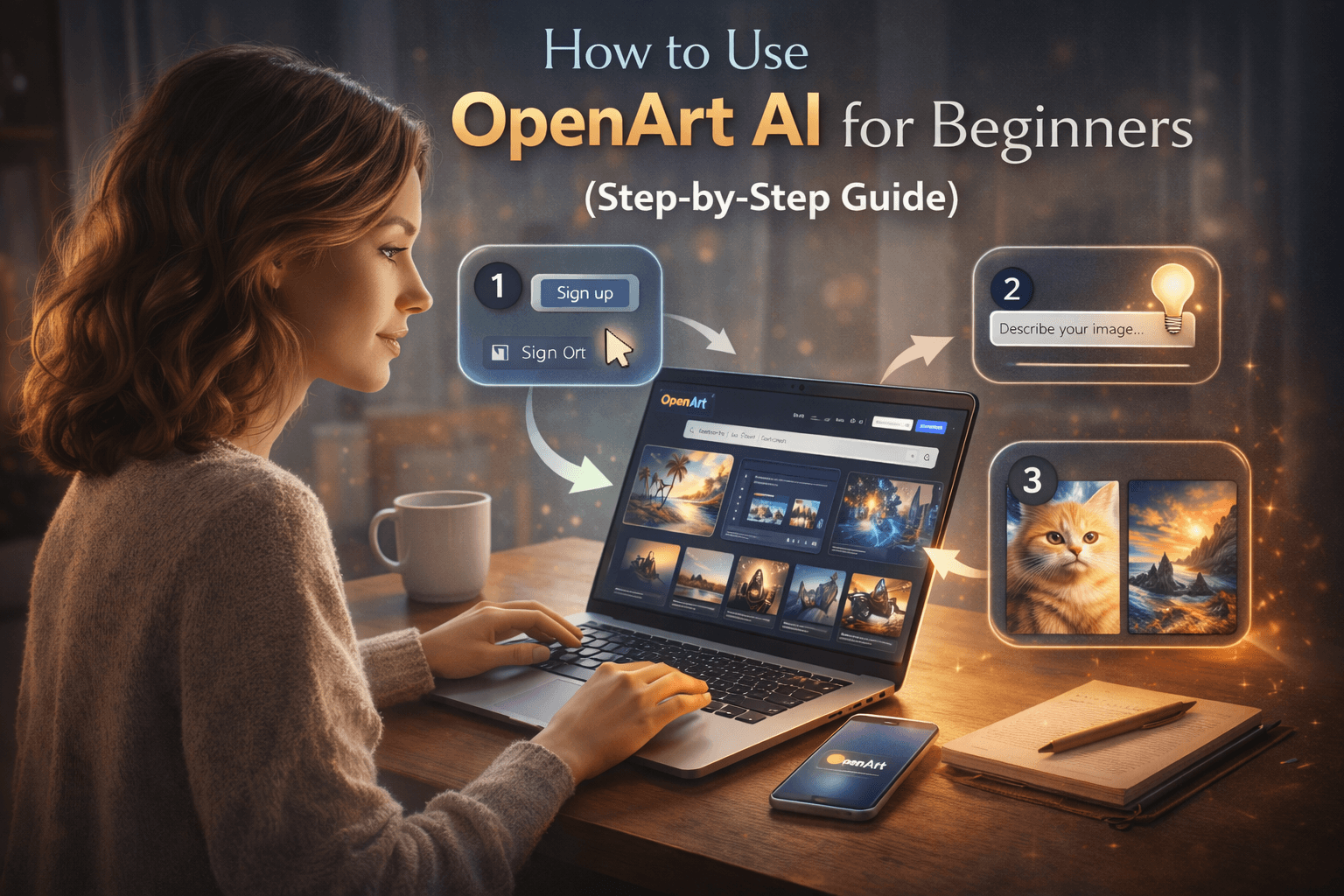
Step-by-Step: How to Use OpenArt AI
Step 1: Create Your Free Account
Visit the official OpenArt AI website.
Click Sign Up.
Register using your email or Google account.
Confirm your account and log in.
New users typically receive free trial credits to start generating images.
Step 2: Explore the Dashboard
Once logged in, you’ll see:
Create Tab: Where you generate images
Models Section: Choose different AI styles
My Creations: View saved images
Credits Counter: Track usage
Take a few minutes to explore the interface: it’s beginner-friendly and intuitive.
Step 3: Generate Your First AI Image
Click on Create.
Enter a text prompt (describe what you want clearly).
Example: “A futuristic city at sunset with neon lights, cyberpunk style, ultra detailed, 4K resolution”
Choose:
Image size
Number of outputs
AI model style
Click Generate.
Within seconds, your AI-generated images will appear.
Step 4: Improve Your Prompts
Good prompts = better results.
Beginner Prompt Formula: Subject + Style + Details + Quality
Example: “Portrait of a medieval knight, realistic style, dramatic lighting, cinematic, high detail”
Tips:
Be specific
Mention lighting, resolution, and mood
Avoid vague words
Experiment with variations
Step 5: Edit & Enhance Your Image
OpenArt AI allows:
Upscaling for higher resolution
Background removal
Image-to-image refinement
Character consistency adjustments
Simply click on the generated image and choose an editing option.
Step 6: Download or Share
Once satisfied:
Click Download
Choose resolution
Use it for blogs, social media, marketing, or personal projects
Make sure to review usage rights depending on your subscription plan.
Tips for Beginners to Get Better Results
Start with simple prompts
Study trending prompts inside the community gallery
Use higher-quality models for professional outputs
Track your credits to avoid running out mid-project
Try multiple variations instead of relying on one result
Common Mistakes Beginners Make
Using very short prompts
Ignoring model selection
Generating too many images without refining
Not adjusting the aspect ratio
Wasting credits on unclear ideas
Planning your prompt first saves time and credits.
Ready to create your first AI artwork? Start Using OpenArt AI for Free Today!
How Many Credits Do Beginners Need?
If you’re just experimenting, the Free Plan is enough to learn the basics.
If you create weekly content, the Essential Plan may be ideal.
Heavy users should consider higher tiers to avoid frequent credit shortages.
FAQs
Is OpenArt AI free to use?
Yes, there is a free trial plan with limited credits for beginners.
Do I need design skills?
No. OpenArt AI is beginner-friendly and requires no prior design experience.
How long does image generation take?
Usually just a few seconds, depending on complexity and server load.
Can I use OpenArt images commercially?
This depends on your subscription plan. Always check licensing terms.
What makes a good AI prompt?
Clear subject, detailed description, style reference, lighting, and quality instructions.
Final Thoughts
OpenArt AI is one of the easiest AI art tools for beginners. With a simple dashboard, flexible models, and powerful editing features, it allows anyone to create stunning visuals without technical skills.
The key to mastering OpenArt AI is practice and prompt experimentation. The more you refine your instructions, the better your results will be.
If you’re just starting your AI art journey, OpenArt AI offers a smooth and accessible entry point into the world of generative creativity.