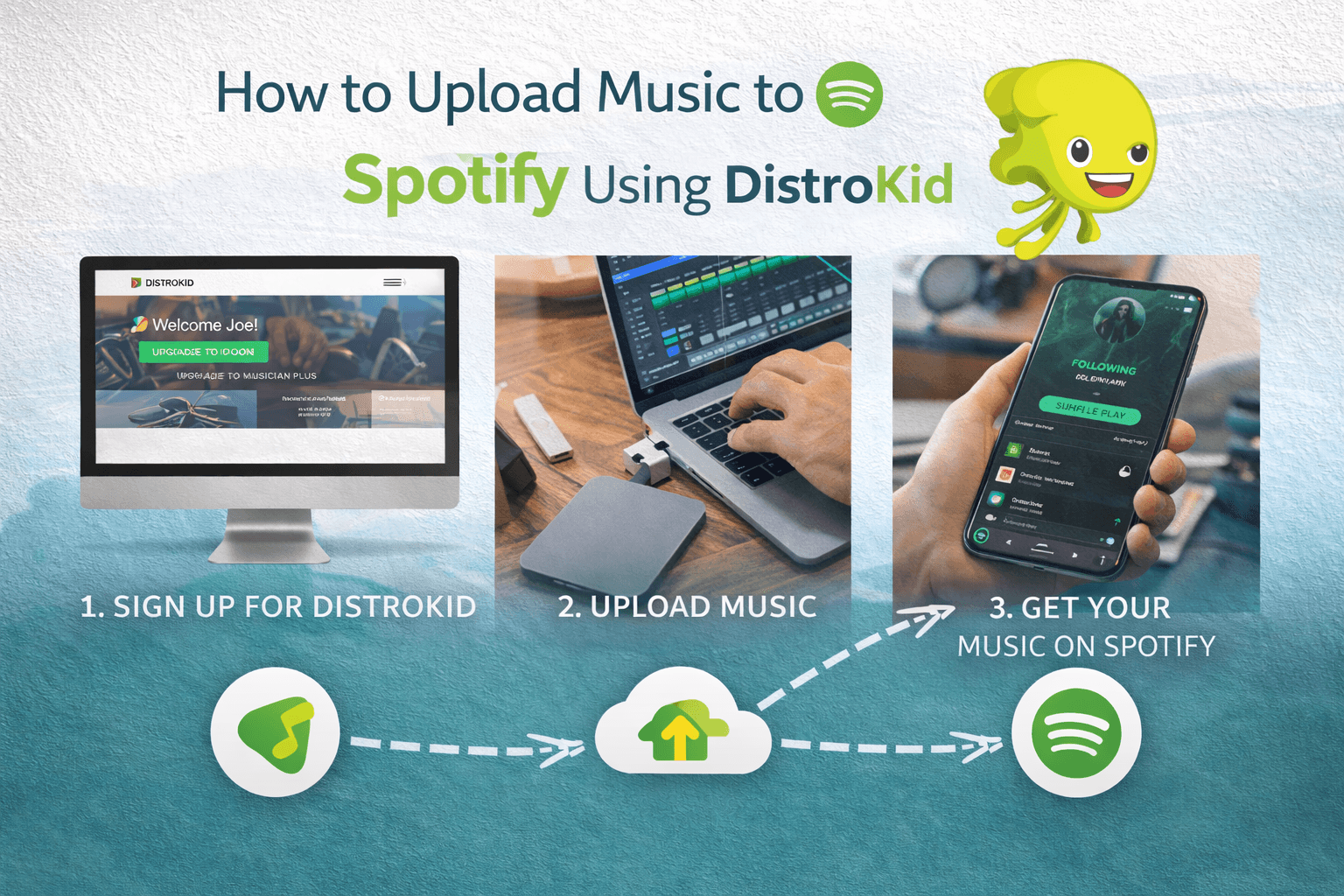
How to Upload Music to Spotify Using DistroKid
Jan 24 2026
The days of needing a major record label to get your music heard are officially over. In 2026, the power is entirely in your hands. If you have a song recorded and you're ready to share it with the world, DistroKid is the fastest and most efficient bridge to get your tracks onto Spotify.
But for a first-timer, the upload form can look a bit like the cockpit of a plane, lots of buttons, checkboxes, and technical terms. Don't worry. This guide will walk you through exactly how to upload music to Spotify using DistroKid, ensuring your release goes live without a hitch.
Before You Begin: The Pre-Flight Checklist
You wouldn't build a house without the right materials, and you shouldn't start an upload without your files ready. DistroKid and Spotify have strict technical requirements to ensure your music sounds and looks professional.
The Audio File
Format: Always use WAV or FLAC files. While DistroKid accepts MP3s, they are "lossy" and will result in lower sound quality on Spotify.
Specs: Aim for 16-bit, 44.1 kHz as the industry standard.
Mastering: Ensure your track is mastered to roughly -14 dB LUFS. This is Spotify’s target loudness level, and it prevents the "normalization" algorithm from distorting your song.
The Artwork
Dimensions: Minimum 1000 x 1000 pixels, but 3000 x 3000 is highly recommended for 2026 retina displays.
Format: JPG is the safest bet.
Content: Your art must be a square image. Do not include social media handles, website URLs, or streaming service logos (like the Spotify logo) on your cover art, or it will be rejected.
Step-by-Step: The DistroKid Upload Form
Once you’ve logged into your DistroKid account and clicked "Upload," you’ll be faced with the main form. Here is how to fill it out like a pro.
Step 1: Select Your Stores
DistroKid can send your music to 150+ platforms. While your focus is Spotify, make sure you check the boxes for Apple Music, TikTok, Amazon, and YouTube Music. It doesn’t cost extra, so you might as well be everywhere.
Step 2: Number of Songs & Previous Release
Indicate if you are releasing a Single or an Album. If this is a brand-new track, select "No" for the "Previously Released" question. If you are re-uploading an old song (perhaps from a previous distributor), you will need to provide the original ISRC code to keep your stream counts.
Step 3: Artist Name
Type your name carefully. If you are a new artist, DistroKid will create a new Spotify profile for you. If you already have a profile, ensure the spelling is identical so the song lands on your existing page.
Step 4: The Release Date (Crucial!)
If you have a Musician Plus or Ultimate plan, you can set a custom release date.
Pro Tip: Always set your release date at least 3 weeks in the future. This gives Spotify's editorial team time to review your song for their official playlists.
Click Here to upload your song on DistroKid
Advanced Features: The "Extras"
As you scroll down the form, you'll see a section for "Album Extras." Some are free, and some have a small annual fee.
Extra | What It Is | Is It Worth It? |
YouTube Content ID | Earns money when others use your song in videos. | Yes, if you expect viral potential. |
Store Maximizer | Automatically adds your song to new stores in the future. | Maybe, if you're lazy about updates. |
Leave a Legacy | Keeps your song on Spotify even if you stop paying DistroKid. | Yes, for your "evergreen" hits. |
Discovery Mode | Gives your song a boost in Spotify's radio/auto-play. | Highly Recommended for new artists. |
Final Verification and Submission
At the bottom of the page, you'll find a list of "Mandatory Checkboxes." These are legal agreements. By checking them, you are confirming that:
You own the rights to the music.
You haven't used any unlicensed samples.
You won't use bot-driven "streaming farms" to fake your numbers.
Once you hit "Done," DistroKid begins the processing phase.
What Happens Next? (The Timeline)
Your music doesn't appear on Spotify the second you hit submit. Here is what the 2026 timeline looks like:
1-2 Days: DistroKid reviews your files and metadata for errors.
3-5 Days: The "transfer" to Spotify's servers takes place.
Release Day: At 12:00 AM in each time zone, your music goes live!
How to Claim Your "Spotify for Artists" Profile
One of the best perks of using DistroKid is instant access to your Spotify for Artists dashboard. This is where you can see live stats, update your bio, and add a Spotify Canvas (those short looping videos).
Log into DistroKid.
Go to the "Special Access" menu.
Click "Spotify for Artists."
Follow the prompts to link your account.
Once verified, you’ll get the famous Blue Checkmark next to your name, signaling to fans and curators that you are a legitimate artist.
Frequently Asked Questions
Can I change my artwork after the song is uploaded?
Yes, but it takes time. You can use the "Edit Release" button in DistroKid, but it usually takes 1-2 weeks for Spotify to update the image globally. It is much better to get it right the first time.
What if I want to add a "Featured Artist"?
On the upload form, there is a specific section to add "Featured" or "Additional Primary" artists. Make sure you have their Spotify Artist URI (link) handy so the song appears on their profile as well as yours.
Does DistroKid take a percentage of my Spotify royalties?
No. DistroKid is one of the few distributors that lets you keep 100% of your earnings. You pay the annual subscription fee, and every penny from your streams goes into your DistroKid "Bank."
Can I upload a cover song?
Yes! DistroKid makes this easy by handling the "Mechanical License" for you for a small fee (around $12 per year). You just provide the original artist and song title, and they do the legal work.
Conclusion: Consistency is Key
Uploading to Spotify is just the beginning. In the competitive music world of 2026, the most successful artists are the ones who release music consistently. Because DistroKid allows unlimited uploads, don't be afraid to release singles every 4-6 weeks to keep your momentum going.
Now that you know how the process works, what’s stopping you? That song on your hard drive isn't doing anyone any good, get it uploaded today.