
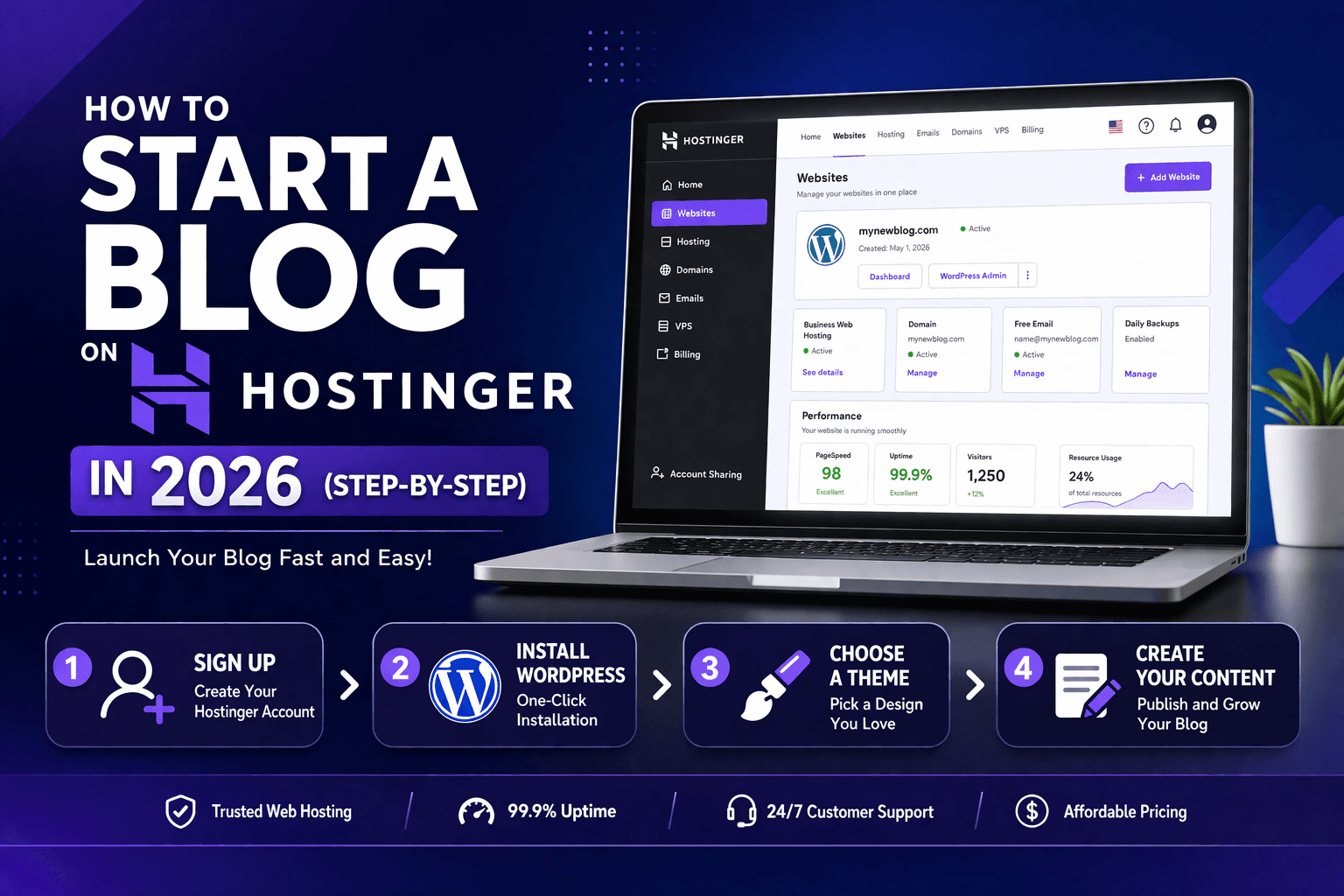
How to Start a Blog on Hostinger
Jan 12 2026
By Senna Whitford, Software & Tools Editor | Last Updated: April 2026
I set up a WordPress blog on Hostinger from scratch in 22 minutes. That includes purchasing the plan, connecting a domain, installing WordPress, and publishing the first post. This guide walks you through every step with no fluff.
What You Need Before Starting
A blog idea or niche. That is it. Hostinger handles everything else: domain registration, hosting, WordPress installation, SSL, and email. You do not need technical skills. You do not need to know how to code.
Budget-wise, you are looking at $2.99/month for the Premium plan on a 48-month term, which is the plan I recommend for bloggers. It includes a free domain, 100 GB of storage, and enough resources for a blog that pulls in 50,000+ monthly visitors.
Buy Hostinger Premium Hosting
Go to Hostinger and select the Premium Web Hosting plan. Choose your billing cycle. The 48-month plan offers the best per-month rate, but the 12-month plan works if you want a shorter commitment.
Enter the coupon code CB10 at checkout for up to 85% off and 3 free months.
Create your Hostinger account with your email and password. Complete the payment. You will be redirected to hPanel, Hostinger’s control panel.
Claim Your Free Domain
After purchase, Hostinger prompts you to claim your free domain. Type in your desired domain name and check availability.
Domain naming tips for bloggers:
Keep it short. Under 15 characters is ideal. Avoid hyphens and numbers. Use .com if available. If your preferred .com is taken, .co or .blog are reasonable alternatives for content sites.
Do not overthink this. Your content quality matters infinitely more than your domain name. Pick something memorable, buy it, and move on.
Once you select your domain, Hostinger handles the DNS configuration automatically. The domain will point to your hosting within minutes.
Install WordPress
hPanel makes this dead simple.
Navigate to the WordPress section in your hPanel dashboard. Click “Install WordPress.” Fill in your site title, admin email, username, and password. Choose the latest WordPress version. Click install.
The installation takes under 60 seconds. Hostinger will show you your WordPress admin URL (yourdomain.com/wp-admin) and login credentials.
Important: Change your admin username from the default. Use a strong password. Enable two-factor authentication in your WordPress security settings. These three steps prevent 90% of WordPress hacks targeting new blogs.
Choose and Install a Theme
Log in to your WordPress dashboard at yourdomain.com/wp-admin.
Go to Appearance, then Themes, then Add New. I recommend starting with one of these free themes:
Astra is the most popular WordPress theme for a reason. It is lightweight (under 50 KB), fast, and works with every page builder. The free version is sufficient for most blogs.
GeneratePress is another excellent lightweight option with clean code and fast load times.
Kadence offers more built-in design options than Astra without the weight of bloated premium themes.
Do not spend days picking a theme. Install Astra, customise the colours and fonts to match your brand, and start writing. You can always change your theme later. Your first 50 blog posts matter more than your theme choice.
Install Essential Plugins
Go to Plugins, then Add New. Install these and nothing else to start:
LiteSpeed Cache comes pre-installed on Hostinger. Activate it. This is your caching and performance optimisation plugin. It replaces WP Rocket, W3 Total Cache, and similar plugins. Do not install multiple caching plugins.
Yoast SEO or Rank Math for search engine optimisation. Pick one. Both are excellent. I use Rank Math for its schema markup features, but Yoast has a longer track record.
WPForms Lite for a basic contact form. You need at least a contact page on your blog.
Updraft Plus for backups. Even though Hostinger includes weekly backups on Premium, having an independent backup to Google Drive or Dropbox is smart insurance.
That is four plugins. Resist the urge to install 15 more. Every plugin you add slows your site and increases your attack surface. Add plugins only when you have a specific, immediate need.
Create Your Core Pages
Before publishing blog posts, create these foundational pages:
About Page: Who you are, why you started the blog, what readers can expect. This page builds trust and satisfies E-E-A-T signals for Google.
Contact Page: Use WPForms to add a simple contact form. Include an email address. If you are monetising with affiliates or ads, brands need a way to reach you.
Privacy Policy: Required by law if you use analytics, cookies, or affiliate links (you will). Use a free privacy policy generator and customise it. WordPress has a built-in privacy policy template under Settings, Privacy.
Affiliate Disclosure Page: If you plan to use affiliate links, create a standalone disclosure page and link to it from your site footer and within relevant articles. FTC guidelines require this.
Configure SEO Settings
Open your SEO plugin (Yoast or Rank Math) and complete the setup wizard.
Set your site title and tagline. Configure your sitemap (both plugins generate XML sitemaps automatically). Set your preferred URL structure under Settings, then Permalinks. Use “Post name” format (yourdomain.com/your-post-title). This is the cleanest and most SEO-friendly permalink structure.
Connect Google Search Console to your site. Submit your sitemap URL (yourdomain.com/sitemap.xml). This tells Google your site exists and accelerates indexing.
Set up Google Analytics using the GA4 tracking code. You need data from day one to understand what content performs and what does not.
Set Up SSL and Performance
Hostinger includes free SSL on all plans. Check that your site loads with https:// and shows the padlock icon. If it does not, go to hPanel, then SSL, and activate the free SSL certificate. Force HTTPS redirect so all traffic uses the secure connection.
Activate LiteSpeed Cache plugin and enable the following: page cache, browser cache, object cache, image optimisation (WebP conversion), and CSS/JS minification. These settings alone can cut your page load time by 40%.
Write and Publish Your First Blog Post
Go to Posts, then Add New in your WordPress dashboard.
Write a post that targets a specific keyword your audience is searching for. Do not write a “Welcome to my blog” post that nobody will ever search for. Your first post should be a piece of content that can rank on Google and drive traffic.
Follow this structure: a clear H1 title with your target keyword, an introduction that hooks the reader within the first two sentences, H2 and H3 subheadings that break the content into scannable sections, and a conclusion with a clear next step for the reader.
Aim for 1,500 to 2,000 words for your first post. Longer content ranks better when it is comprehensive and well-structured. Thin 300-word posts will not compete.
Add at least one image with descriptive alt text. Write a meta title under 60 characters and a meta description under 155 characters using your SEO plugin.
Hit Publish.
Set Up Email
Go to hPanel, then Emails. Hostinger includes free email accounts on Premium and above. Create a professional email address (hello@yourdomain.com or your name@yourdomain.com).
Use this email for your contact page, social media profiles, and affiliate network applications. A custom domain email signals legitimacy. Gmail addresses in business communications erode trust.
What to Do After Launch
Publish consistently. Two to three posts per week for the first three months is a strong cadence. Focus on long-tail keywords with moderate search volume (100 to 1,000 monthly searches) and low competition.
Build internal links between your posts from the start. Every new article should link to at least two existing articles. This helps Google understand your site structure and distribute page authority.
Submit each new post URL to Google Search Console for faster indexing. Monitor your rankings weekly and adjust your content strategy based on what gains traction.
Start Your Blog on Hostinger now
FAQ
How much does it cost to start a blog on Hostinger?
The Premium plan costs $2.99/month on a 48-month term, which includes a free domain and hosting. Your total first-year cost is roughly $35 to $45, depending on the billing cycle you choose. Additional costs (premium theme, paid plugins) are optional and not necessary to start.
Do I need to know how to code to blog on Hostinger?
No. WordPress and Hostinger’s hPanel are designed for non-technical users. The one-click installer, visual theme customizer, and block editor handle everything without touching code.
Can I make money from a Hostinger blog?
Yes. The most common monetisation methods are affiliate marketing, display ads (Google AdSense, Mediavine, AdThrive), sponsored posts, and selling digital products. Most blogs need 10,000 to 25,000 monthly visitors before meaningful income kicks in.
How long does it take to set up a blog on Hostinger?
Under 30 minutes for the basic setup (hosting, domain, WordPress, theme, essential plugins). Creating your core pages and first blog post adds another hour or two.